Configure an Export Definition - File Transfer
The use of a Secure FTP server, an Amazon S3 Bucket, or a Google Cloud Storage (GCS) Bucket is a common method of extracting data from the Loyalty platform, and transmitting it to an external site where it can be picked up for use in another platform or system.
File transfer types of Export Definitions can be used for extracting Members, Offers, Offer Responses, Campaigns, or Places.
This article assumes that you have already created the Export Definition, either by creating it from scratch, or by copying an existing Export Definition.
To configure an Export Definition:
-
Select Admin from the top navigation bar, then select Integrations > Exports from the side navigation menu. The Exports screen is displayed.
-
On the Exports screen, search for the desired Export Definition (see
-
Click the name of the desired Export Definition. The Export Definition Details screen is displayed.
The Export Definition Details screen is split into multiple steps, identified by a series of numbered items across the top of the screen. You can complete these steps (described below) in any order you like. The Next button at the bottom of the screen navigates to the next step in the sequence, and the Back button navigates to the previous step.
Step 1: Filter
The Filter step allows you to select the records included in the export file. Depending on which Resource you selected for this Export Definition, the platform provides several different methods for selecting these records: using a simple filter, using a Segment (Members only), or using an analytics Query.
Select Records with a Simple Filter
If you selected Person, Offer Response, Campaign, Offer, or Place as the Resource for this Export Definition, the platform lets you define a simple selection filter comprising one or more logical Rules. The use of a filter is optional; if you don't define a filter, the platform will export all records of the selected Resource type.
-
At the top of the Export Definition Details screen, click Filter.
-
To create a new Rule, click the Add icon.
-
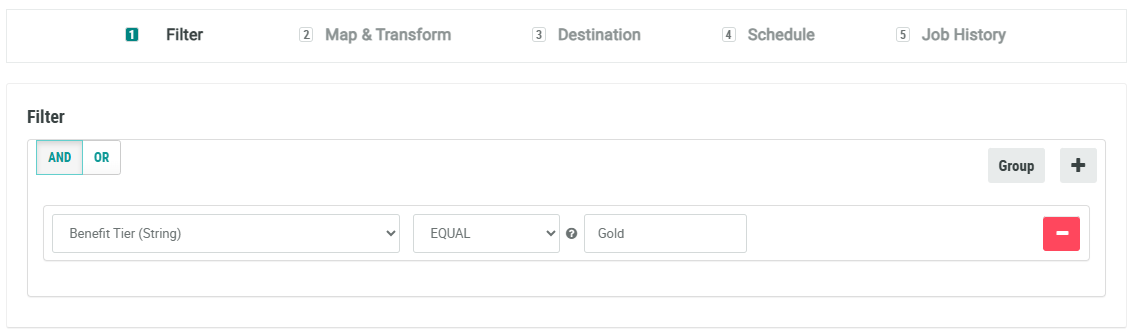
From the first drop-down menu, select an Attribute.
-
From the second drop-down menu, select an operator.
Note: The LIKE operator allows you to search for part of a string using "%" as a wild card character. For example, if you wanted to export all Member records that have "gmail.com" as their email address domain, you would select LIKE as the operator, then enter the value of "%@gmail.com."
-
In the text field, enter a value.
-
Repeat the above steps as needed to define additional Rules.
-
If your filter has multiple Rules, use the toggle buttons to define the logical operator used to join the rules: AND or OR.
-
Optionally, to remove a Rule, click the Remove icon next to it.
-
Optionally, you can also organize Rules into Rule Groups. A Rule Group allows you to build more complex selection criteria. To create a Rule Group, click Group. The platform creates a Group, which is represented visually as a nested box with its own operator toggle and Add icon. Within this Group box, click the Add icon to define the Rule (or Rules) using the same process as described above. Use the toggle within the Group box to define the logical operator for all Rules within that Group. By clicking the Group button inside the Group box, you can create "nested" Groups.
Note: The selected operator within a Group applies to all Rules in that Group. If you need the relationship between some Rules to be AND, and others to be OR, you would need to use multiple Groups, each with their own separate operator.
-
Click Save. Or click Next to move to the next step in the Export Definition Details screen.
Select Members with a Segment
If you selected Person Segment as the Resource, the platform lets you choose a Segment. All the Members selected by this Segment will be included in the export. By using a Segment, you can define more complex selection criteria than the simple filter described above.
-
At the top of the Export Definition Details screen, click Filter.
-
From the Segment drop-down menu, select the desired Segment.
-
Optionally, to refresh the Segment before exporting, toggle Refresh Segment to On.
-
Click Save. Or click Next to move to the next step in the Export Definition screen.
Select Records with a Query
If you selected Query as the Resource, the platform lets you choose an analytic Query that defines what records to export.
-
At the top of the Export Definition Details screen, click Filter.
-
From the Bigdata Query drop-down menu, select the desired query.
-
Click Save. Or click Next to move to the next step in the Export Definition screen.
Step 2: Map & Transform
The Map & Transform step is used to define the data map for the export file. The data map allows you to identify which field in the source table should be written to which column in the export file. You can either define the data map manually, or upload a file of column header names to define the data map.
Note: This step is not displayed if you selected Query as the Resource, as the Query itself will define the columns to be exported.
Manually Define a Data Map
To manually define the data map:
-
At the top of the Export Definition Details screen, click Map & Transform.
-
Click Add Row (or select Add Row from the Add drop-down menu).
-
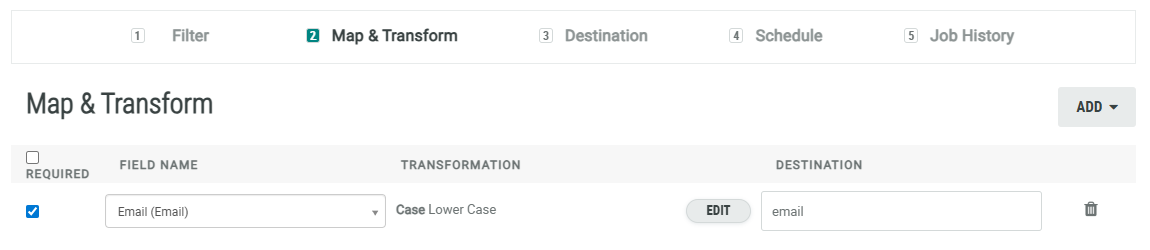
From the Field Name drop-down menu, search for and select the desired Attribute.
-
Check Required if the Attribute must be populated to be included in the export (records with NULL values will be skipped). Otherwise, leave Required unchecked if having a NULL value in this field is acceptable (rather than skipping the record).
-
Optionally, to perform a data transformation on an Attribute, click Add. From the pop-up menu of available options, click the desired Data Transformation. Repeat this step as needed to add additional Data Transformations.
-
In the Destination field, enter the column header name as it will appear in the export file.
-
Repeat the above steps to define additional Attributes to export. Optionally, to remove an Attribute, click the Delete icon next to it.
-
Click Save.
-
Click Next to move to the next step in the Export Definition Details screen.
Upload Headers
Instead of manually defining the data map as described above, you can upload a file of column header names to use as the data map. This file must be in .csv or .txt format. The platform will attempt to automatically match each header name in the uploaded file to an Attribute.
-
At the top of the Export Definition Details screen, click Map & Transform.
-
Click Upload Headers (or select Upload Headers from the Add drop-down menu). The Upload Headers pop-up window is displayed.
-
Click Choose File. Browse to and select the desired file, then click Open.
-
From the Delimiter drop-down menu, select a delimiter character (Comma or Tab), or select Custom and enter the custom character.
-
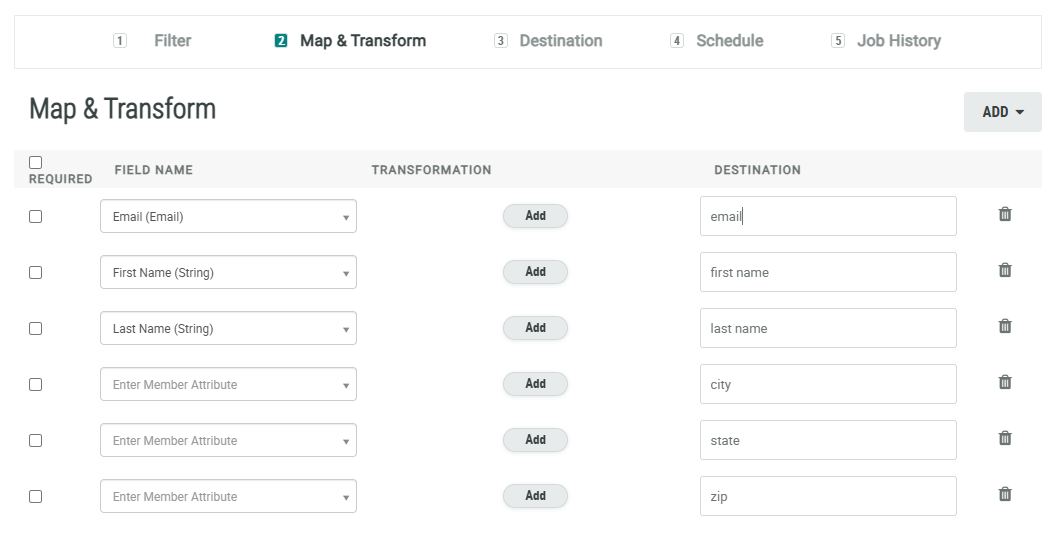
Click Upload. The Map & Transform screen is populated with the column header names from the uploaded file. The column header names are displayed beneath Destination, in the same sequence as they appear in the uploaded file. If the platform was able to match a header name with an Attribute, the Field Name drop-down menu is populated with that Attribute name.
-
For the columns where the platform found a match, verify that the match is correct. If the match is incorrect, or if the platform couldn't match to an Attribute, select the desired Attribute from the Field Name drop-down menu.
-
Optionally, to perform a data transformation on an Attribute, click Add. From the pop-up menu of available options, click the desired Data Transformation. Repeat this step as needed to add additional Data Transformations.
-
Optionally, beneath Destination, edit the column header names. These values represent the column names as they will appear in the export file.
-
Check Required if the Attribute is required.
-
Optionally, if you need to add an Attribute beyond what was included in the file of column header names, select Add Row from the Add drop-down menu. The platform adds a new blank row to the bottom of the screen, where you can select the Attribute and enter the name of the column. Optionally, to remove an Attribute, click the Delete icon next to it.
-
Click Save.
-
Click Next to move to the next step in the Export Definition Details screen.
Step 3: Destination
The Destination step is used to define the destination of the export file. This step requires that you have a Connection Profile defined. For more information on creating a Connection Profile, please see Connectors.
-
At the top of the Export Definition Details screen, click Destination.
-
From the Connection Profile drop-down menu, select a Connection Profile.
-
In the File Path field, enter the path to the folder on the FTP server, Amazon S3 Bucket, or Google Cloud Storage Bucket where you want to save the export file.
-
In the Filename field, enter the name of the export file.
Note: The file should be named so that it is unique each time it exports, so a new file doesn't overwrite a previous file. The best practice recommendation is to add a timestamp to the filename, such as {(yyyyMMdd)}.
-
From the Delimiter drop-down menu, select a delimiter character (Comma or Tab), or select Custom and enter the custom character.
-
Optionally, from the Text Qualifier drop-down menu, select a text qualifier character (double quotes, single quotes, or pipe), or select Custom and enter the custom character.
-
From the Line End drop-down menu, select the method used to mark a line break in the export file: LF (Line Feed) or CRLF (Carriage Return and Line Feed).
Note: The Item field has been deprecated and should be left blank.
-
If you want the export file to include a column header row, select Yes from the Include Headers drop-down menu.
-
From the File Encoding drop-down menu, select an encoding method (the default method is UTF-8).
-
Optionally, to export a Control File along with the export file, enter the desired Control File name in the Control File Name field. The Control File contains the expected record count of the export file. The filename must have an extension of either.control or .ctrl .
-
Optionally, to PGP-encrypt the export file, select the desired Encryption Key from the Encrypt With drop-down menu.
-
If you want to allow the platform to export empty files, select Yes from the Allow Empty Files drop-down menu.
-
Click Save.
-
Click Next to move to the next step in the Export Definition Details screen.
Step 4: Schedule
Export Definitions can be executed on-demand (see
In addition, you can create a schedule that executes the export once at a specified date / time, or on a recurring basis. These schedule options are described below.
Execute Only Once
To schedule an Export Definition to execute once at a specified date / time:
-
At the top of the Export Definition Details screen, click Schedule.
-
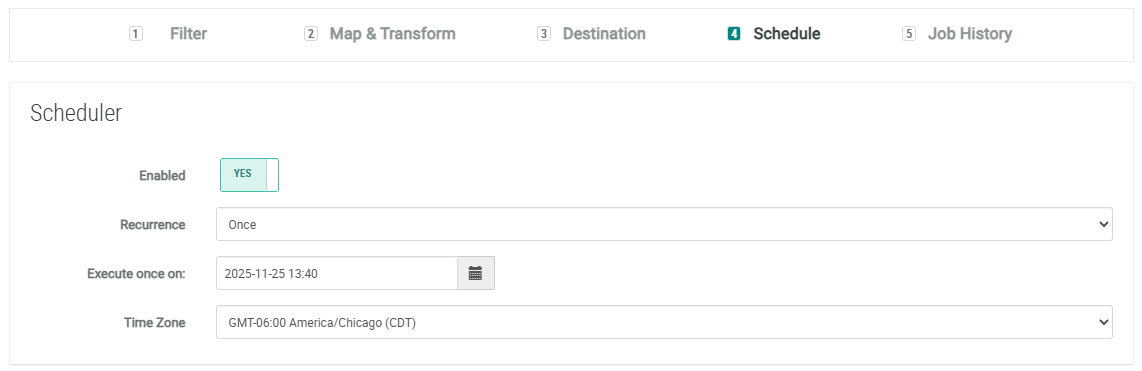
Toggle Enabled to Yes.
-
From the Recurrence drop-down menu, select Once.
-
Click into the Execute Once On field. A calendar pop-up window is displayed. Select the desired date when you want the export to execute.
-
Within the calendar pop-up window, click the clock icon. Define the time when you want the export to execute.
-
From the Time Zone menu, select the time zone to use when determining the time to execute.
-
Click Save.
Executing on a Recurring Schedule
To schedule an Export Definition to execute on a recurring frequency:
-
At the top of the Export Definition Details screen, click Schedule.
-
Toggle Enabled to Yes.
-
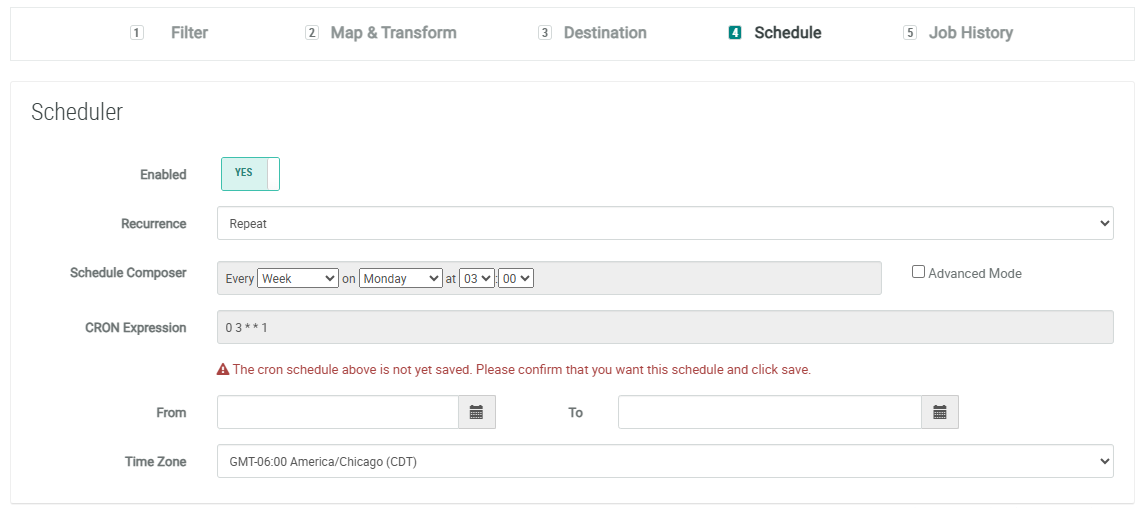
From the Recurrence drop-down menu, select Repeat.
-
Next to Schedule Composer, select an interval:
-
15 Minutes
-
30 Minutes
-
Hour: Select the minute past the hour.
-
Day: Select the time of day.
-
Week: Select the day of the week, and the time of day.
-
Month: Select the day of the month, and the time of day.
-
Year: Select the day, the month, and the time of day.
-
-
As you configure the interval above, the CRON Expression field is automatically populated with the associated CRON expression. Optionally, to manually edit this expression, check Advanced Mode.
-
Optionally, using the From and To fields, define the export schedule begin and end date. If you leave these date fields blank, the schedule will run indefinitely.
-
From the Time Zone menu, select the time zone to use when determining the time to execute.
-
Click Save.
Email Notifications
You can configure the Export Definition to trigger success and / or failure notifications to one or more email recipients.
-
Optionally, if you want to send error notifications, toggle Error to Yes, then enter the email addresses for the notification recipients.
-
Optionally, if you want to send success notifications, toggle Success to Yes, then enter the email addresses for the notification recipients.
-
Click Save.